Debug
Using the debugger
The debug pane combines a program-level view, a CPU-level instruction trace, and a trace capture tool for analyzing the emulator's behavior in detail.
Overview
The debug pane has three tabs: CALCULATOR, CPU, and LOG.
- CALCULATOR — Program listing (copied from RAM), the working value X, registers, flags and the status register at the current moment. Shows the step that will execute next. Useful for stepping through your own programs.
- CPU — Execution trace: the actual sequence of ROM instructions that ran. Shows the instruction that just finished and the register state after it executed. You can scroll back through the history.
- LOG — Dumps of the calculator's memory on request, the debug log, and the TRACE toggle. Most useful for capturing session files for deep analysis.
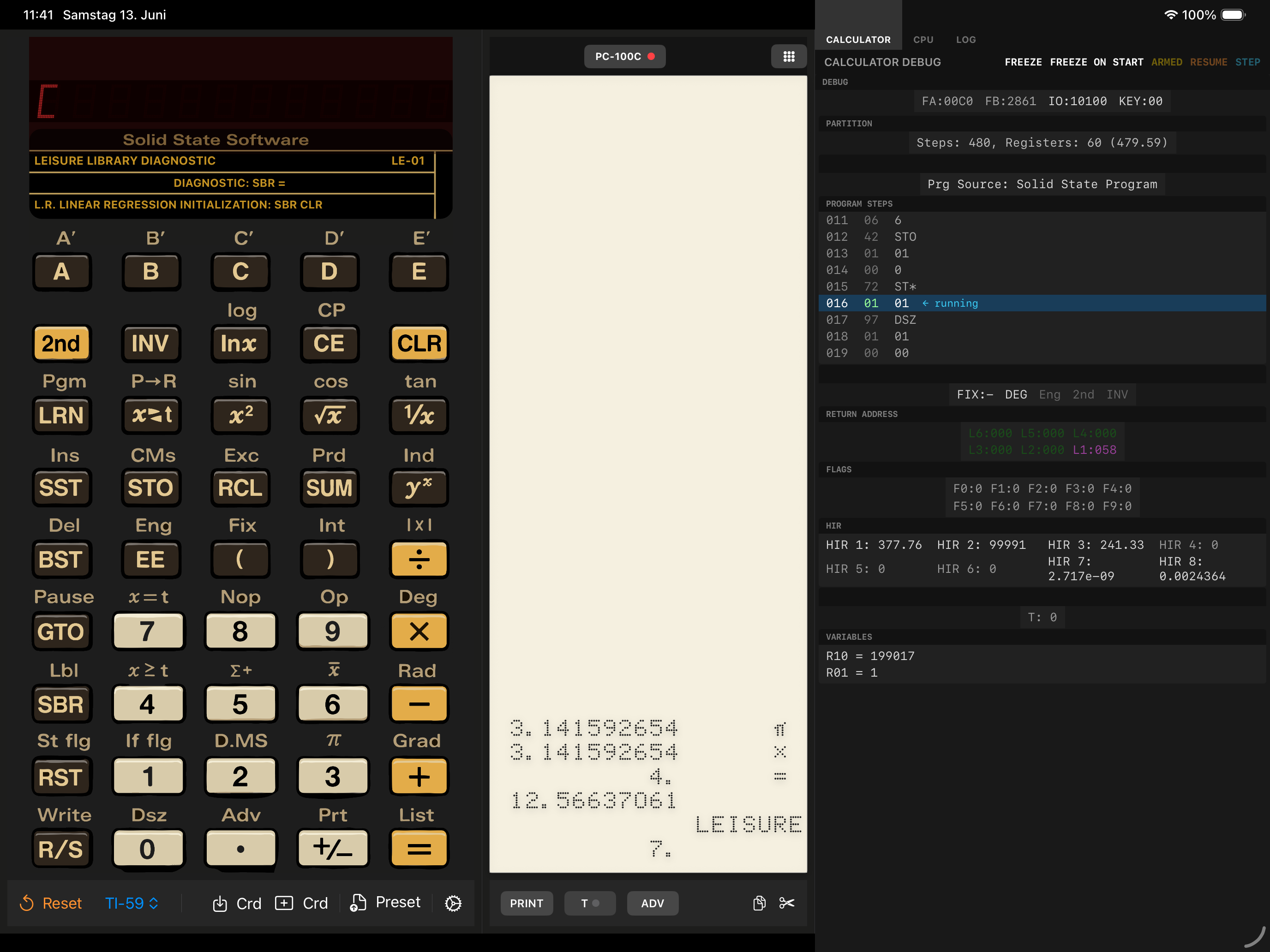
CALCULATOR tab
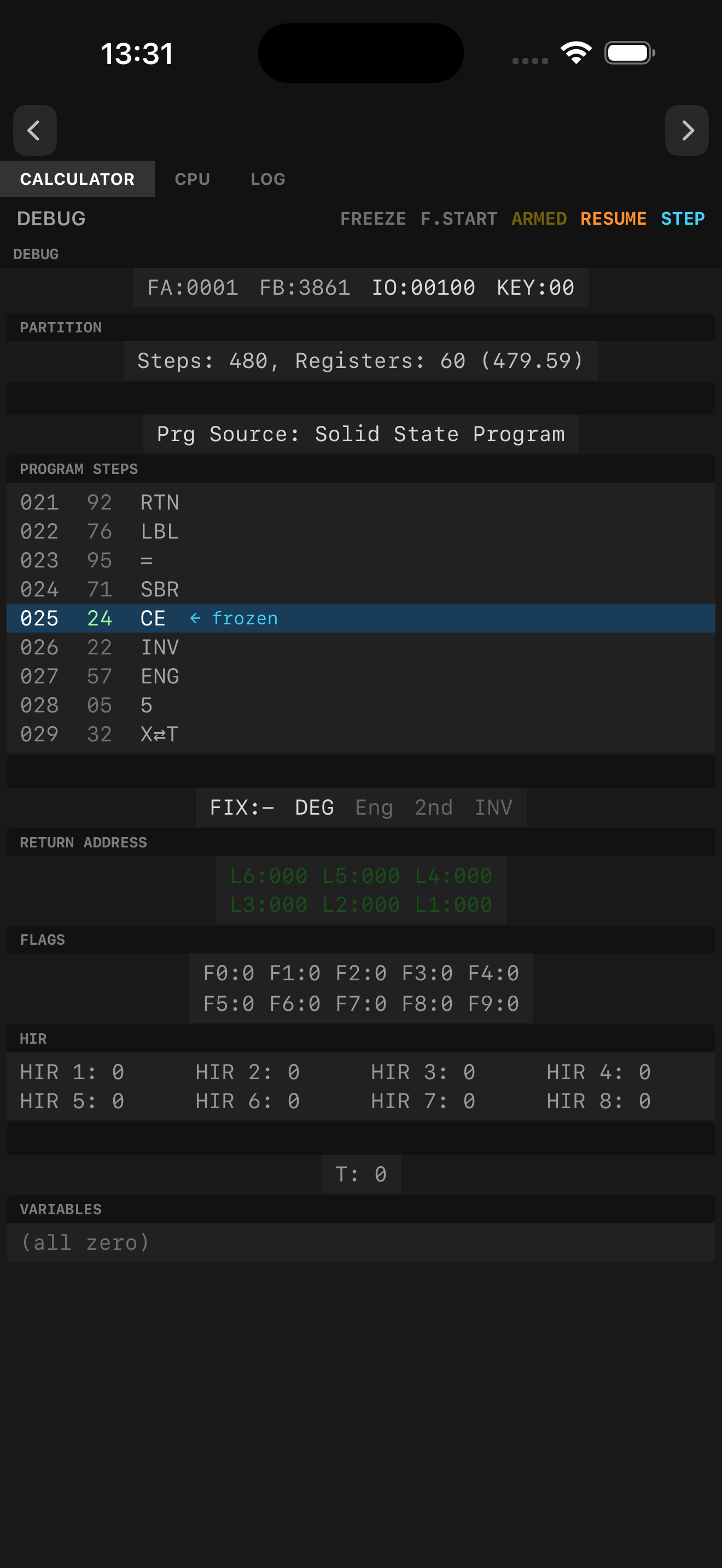
The CALCULATOR tab shows a window into program memory (copied from RAM) centred on the current step. The highlighted instruction is the one that will execute next. After a jump (GTO, SBR, etc.) the listing jumps to the new location — it does not show where you came from, because it is not a trace.
Registers and flags reflect the calculator state right now, before the highlighted step runs. When frozen, the cursor reads ← next, as the calculator's own LRN display does after SST. While a program runs, the tab shows the state at the last program step, never the middle of an operation.
- X: — the calculator's working value with all 13 digits. When that register holds no number (for example while single-stepping a fast-mode program), the raw register is shown in amber.
- DEBUG — the FA and FB flag registers and HIR0:, the whole status register.
- Fast mode is shown whenever the program runs in it.
STEP in CALCULATOR mode — advances exactly as SST does: one program step per press, with a jump (GTO, SBR, RTN, a conditional) completed in the step that causes it. Hold STEP to repeat. This is the right tool for tracing through a keystroke-driven program one step at a time.
CPU tab
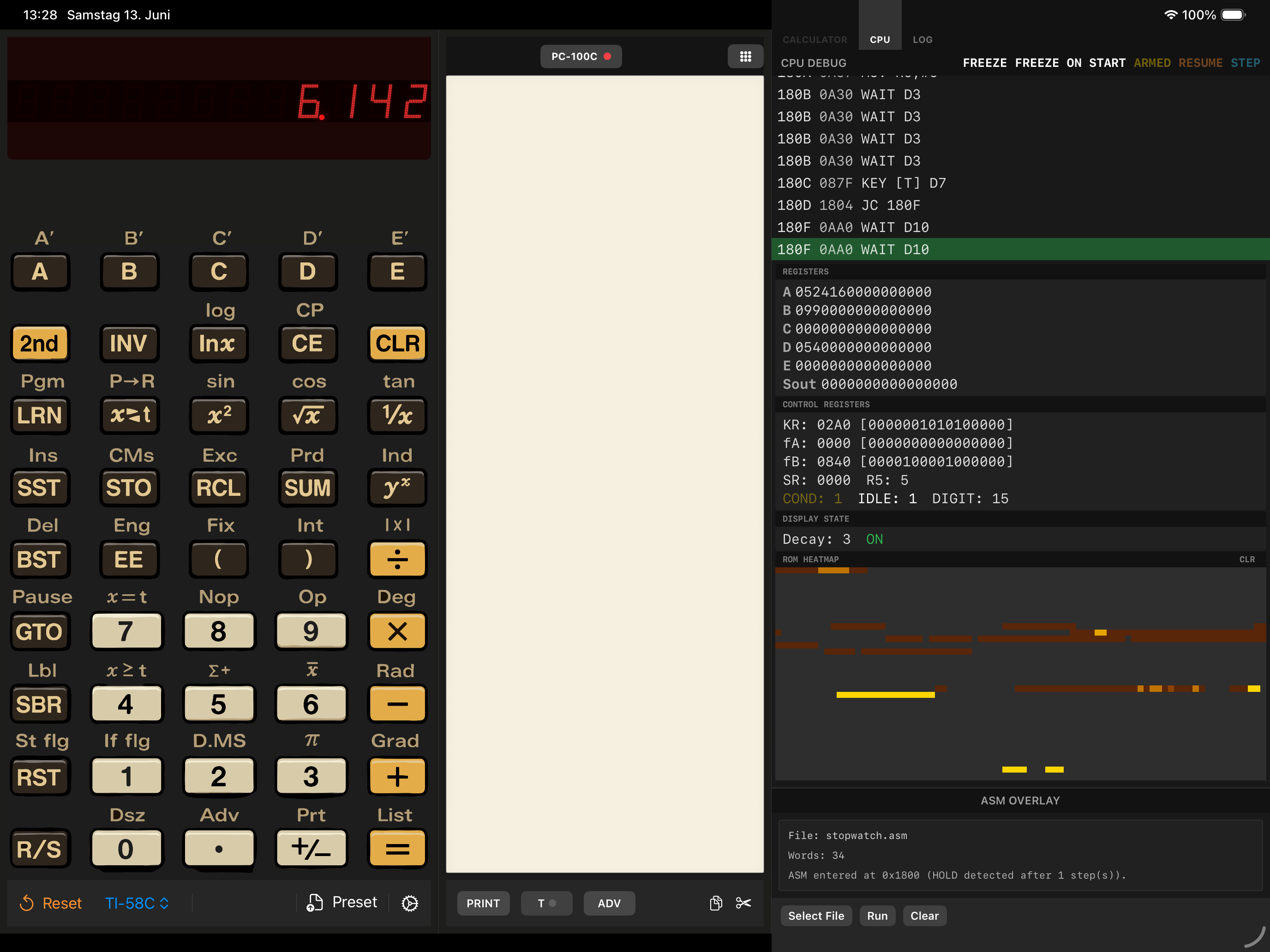
The CPU tab shows the actual ROM instructions that executed, in order. Each entry represents an instruction that already ran; registers and flags are in the state after that instruction completed.
Because it is a true execution trace, you can see jumps, subroutine calls, and PREG transitions — the address changes visibly in the listing. You can also scroll back through past entries to review earlier execution.
STEP in CPU mode — pressing Step executes exactly one ROM instruction, then freezes. This is the right tool when you want to follow the ROM's internal logic one opcode at a time.
ROM HEATMAP — shows how often each ROM address ran; CLR starts it over. It resets when you switch to the CPU tab, unless the CPU is frozen.
ASM OVERLAY — below the CPU tab, Select File loads a small assembly program (see the assembly examples), Run starts it and Clear removes it. While an overlay is active, the CALCULATOR tab is unavailable.
Note on TEST/JUMP flags: because state is captured after each instruction, a TEST shows the flag it set, but the following JUMP shows the auto-restored condition (usually 1). This is expected behaviour — it is not a bug.
Freeze controls
The CALCULATOR and CPU tabs each have their own row of buttons in the tab's header: RESUME, FREEZE, FREEZE ON START (F.START when the panel is narrow), ARMED, and STEP.
- FREEZE — stops the CPU (in the CALCULATOR tab, at the next step).
- FREEZE ON START (CALCULATOR tab) — arms the debugger so it freezes right before the first program step runs, the same point STEP stops at. This is triggered by pressing R/S, launching a program via a label, or any similar action. Useful for catching the very start of a program run.
- FREEZE ON START (CPU tab) — arms the debugger so it freezes the moment the calculator leaves the keyboard scan loop. This happens when you press any key (which causes the ROM to exit the idle loop and start processing the keystroke) or when the calculator is reset. Useful for catching the very first ROM instruction of a key-press handler.
- ARMED — shown in yellow when FREEZE ON START is active; click it to cancel.
- RESUME — resumes execution from the frozen state.
- STEP — advances one step (semantics differ per tab, see above).
Only one FREEZE ON START can be armed at a time. Pressing it in one tab while the other is already ARMED silently transfers the arm. Once frozen, RESUME and STEP are only available in the tab that caused the freeze — the other tab's buttons are disabled to prevent accidental cross-tab interactions.
iPhone behaviour
On iPhone, the debugger is a page of its own in portrait (turn on Settings › Debug Page in Portrait) and covers the calculator. This is different from iPad, the Mac, Windows and Linux, where both views are visible at the same time.
- Switching to the CPU tab resets the heat map, because the CPU trace was not running while CALCULATOR was visible. Exception: if the CPU is already frozen when you switch, the heat map is preserved.
- The selected tab (CALCULATOR, CPU, LOG) is remembered when you navigate away from the debugger and return.
- FREEZE ON START in CALCULATOR works best in landscape or on iPad/Mac, where you can press a key on the calculator while the tab is watching. On iPhone you would need to go back to the calculator, press the key, then return to the debugger.
- FREEZE ON START in CPU arms in the background and fires as soon as you press any key (or reset the calculator), regardless of which tab or screen is visible — the freeze is waiting for a ROM-level scan-loop exit, not a screen interaction.
TRACE and LOG: for session capture and analysis
The LOG panel serves two main purposes:
- Dumps — the SCOM, Memory, Prog and Vars buttons write the scratch registers, the RAM, the program or the data registers to the log as raw values; the trash button clears it.
- TRACE toggle — Records a binary session file while the calculator is running. This is the most thorough way to understand sequences like the reset routine or key-processing flow.
To capture and analyze a sequence:
- Switch to the LOG tab and toggle TRACE on.
- Perform the action you want to analyze (e.g., press Reset, or execute a ROM subroutine).
- Toggle TRACE off to stop recording.
- Find the trace file: on the Mac in the Save Location from Settings (local by default), on iPhone and iPad in the app's iCloud folder (use the Files app), on Windows and Linux in the trace folder from Settings › Files. The app tells you if the file couldn't be created or reached its size limit.
- On a computer with Python, download the
read_trace.pytool from the Calc-U-59 tools folder. - Run:
python3 ./read_trace.py --clean --skip-repeating CALCU59_TRACE.bin > CALCU59_TRACE.txt(the TI-58 and TI-58C write CALCU58_TRACE.bin and CALCU58C_TRACE.bin). - Open the resulting text file to see the full execution trace as human-readable disassembly.
The binary trace file can be large (190 MB for a long session), but the text output is much smaller (57 kB) because the tool deduplicates repetitive loops — especially the keyboard scan loop that runs continuously. This makes it practical to analyze even long traces.
When to use each tool
- CALCULATOR tab — Stepping through your own program one step at a time, checking registers and flags at each step.
- CPU tab — Tracing the ROM's internal instruction flow, reviewing jumps and subroutine calls, scrolling back through execution history.
- TRACE (in LOG) — Capturing a complete ROM sequence for offline analysis (reset routine, memory writes, keyboard processing, etc.).
- Debug logging (in LOG) — the LOG button cycles the level between Off, Info and Debug (grey, orange and red dot). It is mainly used by the developer for debugging specific issues. When enabled, you will see all memory writes and other hardware events. This has limited utility for regular app users.
CALCULATOR tab — iPhone
CALCULATOR tab — iPad
CPU tab — iPad